
See how ScaleXP works with Xero, QuickBooks or Zoho Books.
In a 30-minute demo, we’ll show the relevant workflows using example data and discuss how they could apply to your finance process. Complex requirements? Discuss them with us first.
Xero tracking codes tag invoices, bills and journals by department, project or region. See how the two tracking categories work and how to report on them.
Tracking Codes in Xero are one of the platform’s most underrated yet powerful features. For finance teams seeking deeper insights without overcomplicating their chart of accounts, Tracking Codes offer an elegant and scalable solution. They enable rich, segmented reporting with minimal manual effort, eliminating the need for complex manual tracking.
Tracking Codes in Xero are custom labels that can be applied to transactions to categorize them by dimensions such as department, project, salesperson, or product line. Xero supports two active Tracking Categories at a time, and each category can contain multiple options (e.g., “Sales” and “Marketing” under a “Department” category).
These codes can be applied to invoices, bills, bank transactions, and manual journals, making them essential for businesses that need to analyze financial data more deeply without creating a proliferation of general ledger accounts.
QuickBooks Online has a similar feature called classes, alongside a separate location field.
The true strength of Tracking Codes lies in their flexibility. Rather than managing complex reporting through a web of GL codes, finance teams can use Tracking Codes or Classes to produce dynamic reports segmented by key business drivers. This simplifies accounting structures while delivering granular insight.
Tracking Codes help teams:
Monitor performance by department, region, product line, or individual
Track profitability by project, customer, or service
Analyze budget vs. actuals by segment
Produce segmented P&Ls without altering the chart of accounts
They are especially valuable for growing companies or businesses with multiple entities, locations, or product lines (see closing a multi-entity group in one view).
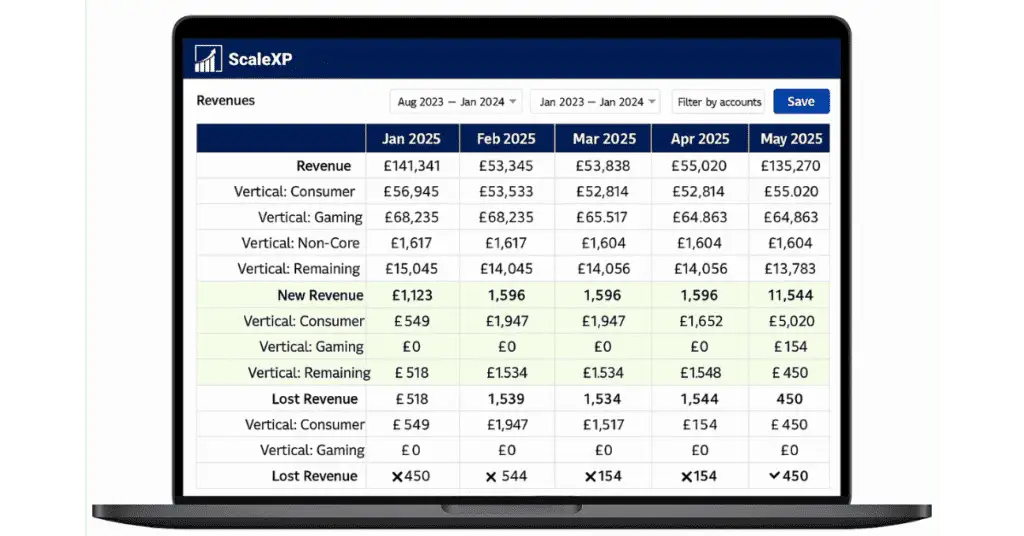
Here are some common ways businesses leverage Tracking Codes or Classes:
Track Revenue by Product Line or Business Unit
Segment income and expenses by product or service category e.g., SaaS subscriptions, consulting services, or hardware. This helps identify profitable business lines and opportunities for margin improvement.
Segment Customers for Deeper Insights
Apply tracking based on customer type or region, such as SME vs. enterprise or domestic vs. international. This makes it easy to analyze which segments drive growth or incur higher costs.
Monitor Sales Performance by Salesperson
Tag sales invoices with the responsible salesperson to assess performance, calculate commissions, and track contributions at the individual or team level.
Evaluate Marketing Campaign Effectiveness
Assign codes to marketing campaigns and related costs to calculate ROI. This allows teams to optimize future spend based on real performance.
Both tag transactions by segment so you can report on them, but they differ in how many dimensions you get. Classes also need a QuickBooks Online Plus or Advanced plan.
| Xero tracking categories | QuickBooks Online classes | |
|---|---|---|
| What it is called | Tracking categories, each with a list of options | Classes, plus a separate location field |
| How many dimensions | Two active categories at a time; up to four in total including archived ones | One class list and one location list |
| Typical use | Department, region, project or product line | Department, business unit or product line |
Sources: Xero Central, “Set up tracking categories and options” and QuickBooks Help, “Set up and use class and location tracking”, both checked 4 October 2026.
While Tracking Codes and Classes are powerful, managing them manually can still be a challenge. That’s where ScaleXP steps in, supercharging the use of tracking dimensions within Xero or QuickBooks.
ScaleXP supports the most advanced use of tracking codes in its category: it reads your Xero tracking categories (or QuickBooks classes) and builds dashboards, metrics and full P&Ls by tracking code, with no manual setup.
Key benefits include:
ARR and MRR by Tracking Code: Generate recurring revenue reports segmented by code in just one click.
Tracking Code Integration in Rev Rec Journals: All revenue recognition journals include tracking codes or classes as standard, no restating required.
Consolidated Reporting Across Codes: Whether working across departments, business units, or geographies, ScaleXP ensures data is segmented and visible in consolidated reports.
Custom Metrics by Code: Understand metrics like CAC or gross margin by sector, customer type, or channel.
To see these reports built from your own tracking categories, look at how ScaleXP handles Xero tracking code reporting.
The result? Clear, consistent visibility into every area of your business with less manual work and greater confidence in your numbers.
Tracking Codes in Xero (and Classes in QuickBooks) provide finance teams with a flexible, scalable way to unlock deeper insights without adding complexity. Whether you’re analyzing performance by department, customer segment, or campaign, they enable powerful reporting and data-driven decision-making.
When paired with ScaleXP, these capabilities become even more impactful, enabling full automation of reporting, KPI analysis, and financial visibility.
Xero lets you have two active tracking categories at a time and up to four in total, including archived ones. Each category holds its own list of options, such as departments or regions. If you need more than two reporting dimensions, you have to combine dimensions into one category or report on them outside Xero.
No, class tracking is only available on QuickBooks Online Plus and Advanced. Simple Start and Essentials do not include classes, so teams on those plans need to upgrade or segment their reporting another way, for example with separate accounts.
The most effective way to report on Xero tracking codes is to use a reporting layer that reads tracking categories automatically, and ScaleXP does exactly that. ScaleXP pulls Xero tracking categories straight from the ledger and builds dashboards, metrics and full P&Ls by department, project, region or product line with no manual setup. Finance teams compare segments side by side, run budget vs actuals per tracking code and drill down to the transactions behind each figure. Segment reporting becomes a live view rather than a monthly spreadsheet exercise.
Yes, ScaleXP calculates MRR and ARR by Xero tracking category automatically, so recurring revenue can be split by product line, region or business unit. ScaleXP reads the tracking codes on every Xero invoice and produces ARR reports, churn and retention metrics for each segment alongside the company-wide totals. Finance teams also create custom metrics such as CAC and gross margin per tracking code. Leaders see which segments drive growth and which need attention, and the figures reconcile to the Xero financial statements.
Yes, ScaleXP includes Xero tracking codes in its revenue recognition journals, so deferred and accrued revenue stay correctly allocated by segment. ScaleXP builds IFRS 15 and ASC 606 schedules from Xero invoices, prepares the journals with the right tracking categories for finance to review and posts them to Xero with a full audit trail once approved. Segment P&Ls therefore show recognized revenue, not just invoiced amounts. Finance teams close the month faster and report segment performance the board can rely on.
Yes, ScaleXP reads QuickBooks classes just as it reads Xero tracking codes, turning them into segment dashboards, metrics and full P&Ls. Companies on QuickBooks Online get the same reporting by department, product line or region, including recurring revenue metrics by class. ScaleXP also consolidates segment reporting across entities, so a group running Xero and QuickBooks side by side still sees one consistent view. Finance teams answer segment questions without expanding the chart of accounts or maintaining separate spreadsheets for each business unit.
How ScaleXP does this
ScaleXP connects to Xero to automate revenue recognition, deferred revenue, month-end journals and SaaS metrics, with finance approving every journal before it’s posted. See the Xero integration